Your launcher, step by step
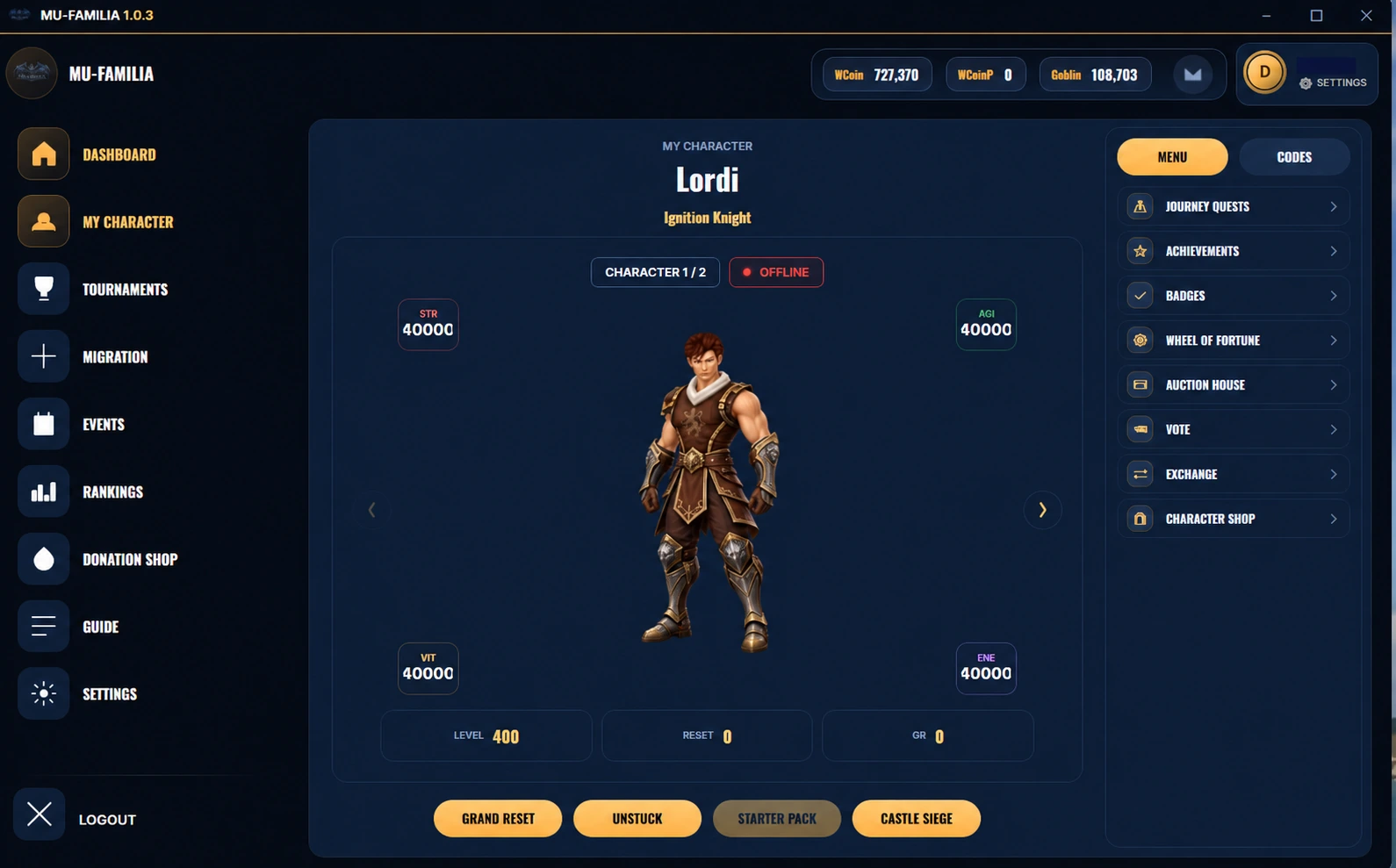
My Character is your character management hub. Access services, missions and rewards without searching through menus.
Screenshots are illustrative: balances, costs and rewards shown do not guarantee the final Familia x100 configuration. The account name has been hidden.
My Character: your control centre
Select the correct character before using a service. This panel brings together character information and access to launcher features.
Grand Reset and Unstuck
Perform Grand Resets from this panel. Check the requirements and what is retained before confirming. If your character gets stuck, use Unstuck to return to Lorencia and follow the conditions shown by the launcher.
Starter Pack
Use Starter Pack to receive the available starting benefits. Check eligibility and whether you have already received it before claiming.
Journey Quests · VIP 3
VIP 3 accounts have Journey Quests: a series of objectives with rewards for completing each mission. Read the requirements and rewards for each stage in the panel.
Achievements for every account
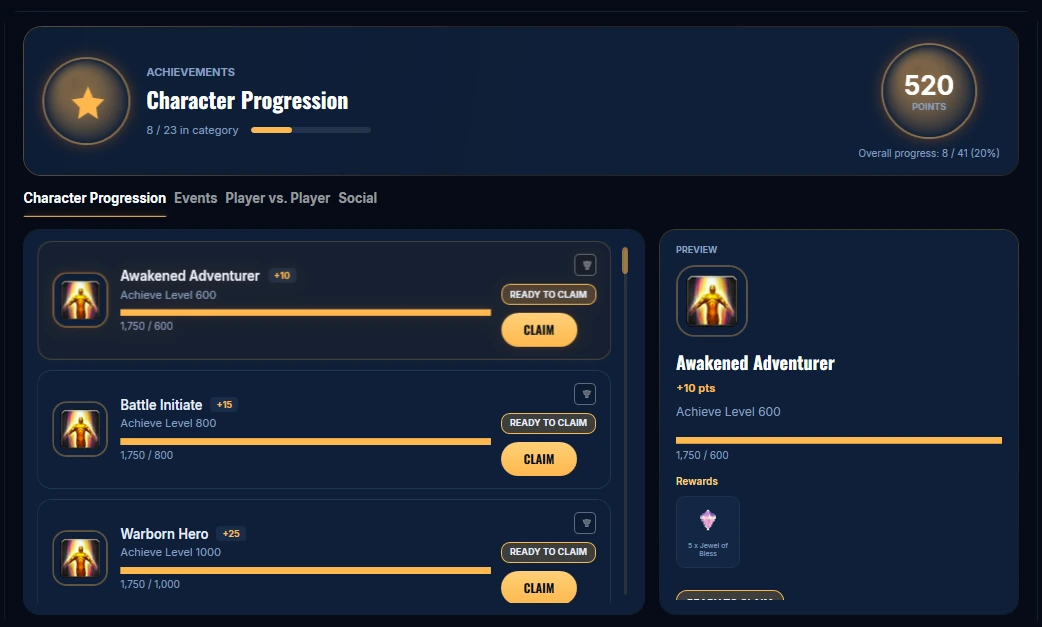
Four categories cover character progression, events, player versus player and social activity. Check each mission's progress and rewards. Completing an objective and claiming its reward are separate steps. Important: rewards first go to Inbox. Open the envelope icon beside your balances and press Claim on the pending reward to receive it.
Badges
Open Badges to see available insignias and their requirements, including those you have already unlocked.
Wheel of Fortune
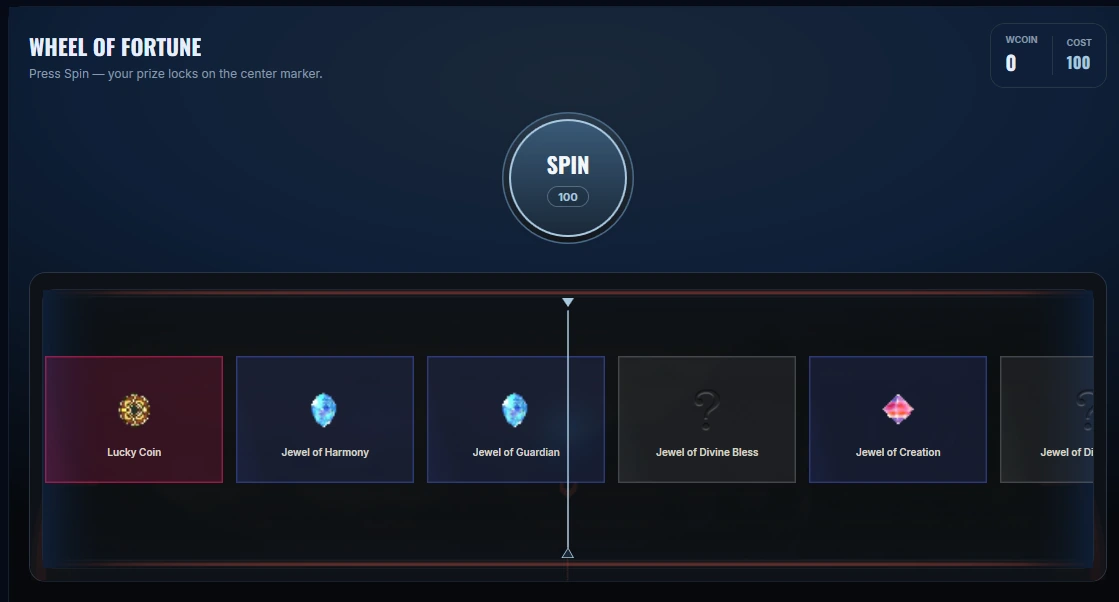
The wheel offers random rewards. Check the cost, currency and available prizes before spinning. A particular result is never guaranteed; this guide cannot spin the wheel or spend balance.
Auction House
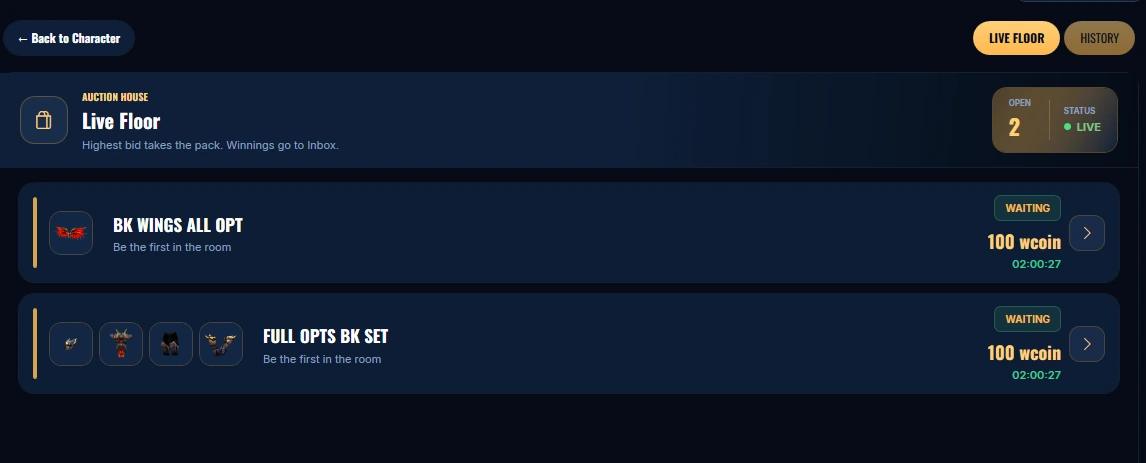
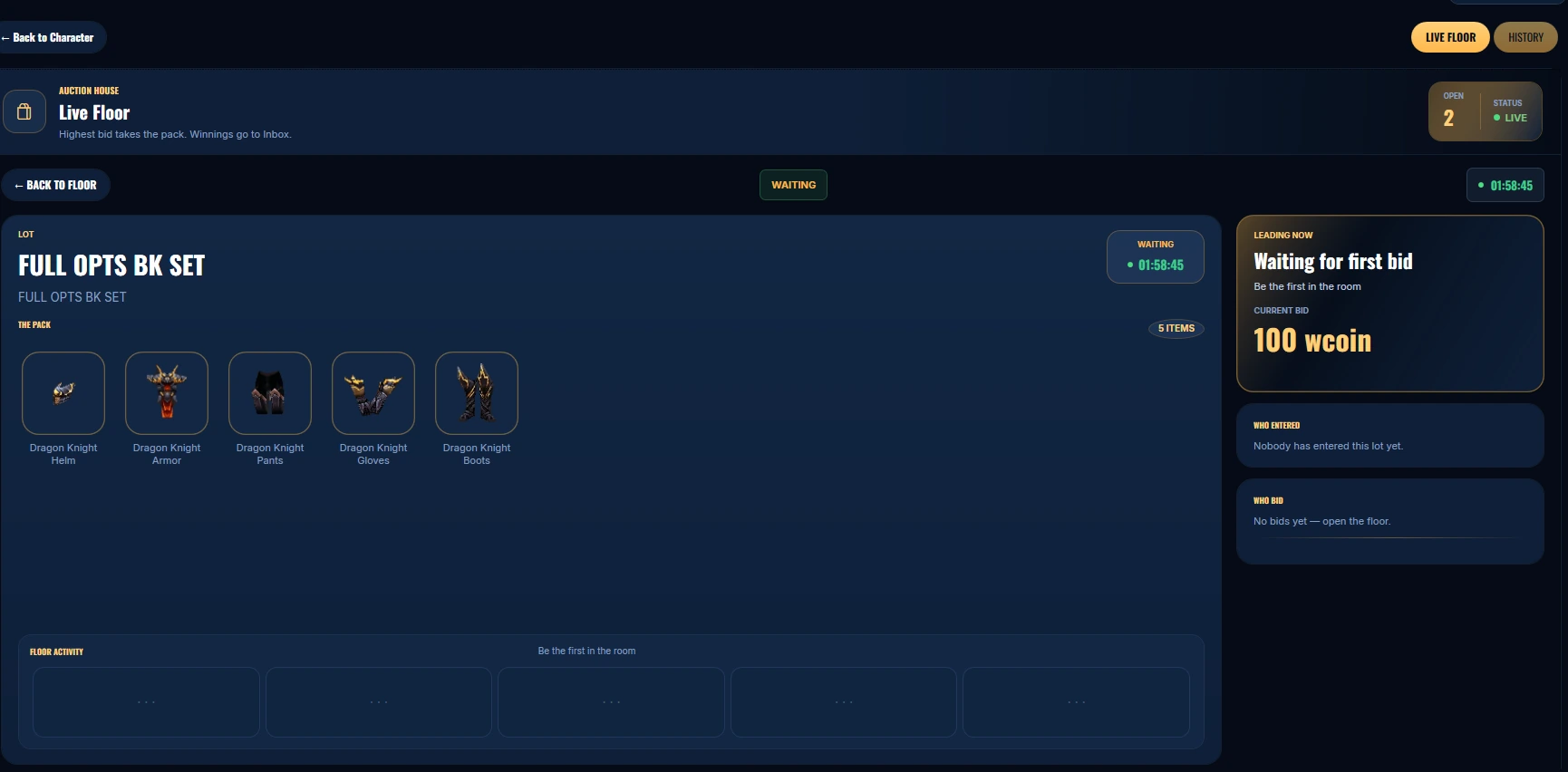
Auction House lists available items and lots under Live Floor. Open one to inspect every item, the current bid and remaining time. You can bid on the specified item or lot; always check the currency, amount and contents before confirming. The highest bid wins the lot and, according to the panel, winnings are delivered to Inbox. History shows past activity. Items and materials from different stages will be offered; compare options and prices to find good offers. The 100 WCoin and times in the screenshots are examples, not guaranteed prices or schedules. Important: rewards first go to Inbox. Open the envelope icon beside your balances and press Claim on the pending reward to receive it.
Inbox: claim your rewards
Winnings and rewards managed by the launcher, including Auction House and Achievements, first arrive in Inbox. Winning an auction or completing an achievement does not mean the reward has already been delivered to your character. Open the envelope icon at the top beside your balances, review the pending reward and press Claim to receive it. Flow: win or complete → Inbox → review the reward → Claim → receive the reward. Check any conditions shown on the entry.
Vote and help the server grow
Valid votes reward WCoins, and you can vote every 12 hours. Open Vote and follow the provider's instructions. The current reward and next available vote appear in the launcher.
Character Shop · Hide Status
Character Shop will offer public profile privacy. A protected view shows only the identifying name, level and resets. Map, allocated stats, equipment and connection are not published. Activation and any price remain pending; this guide does not activate or charge for the service.
Player and server tournaments
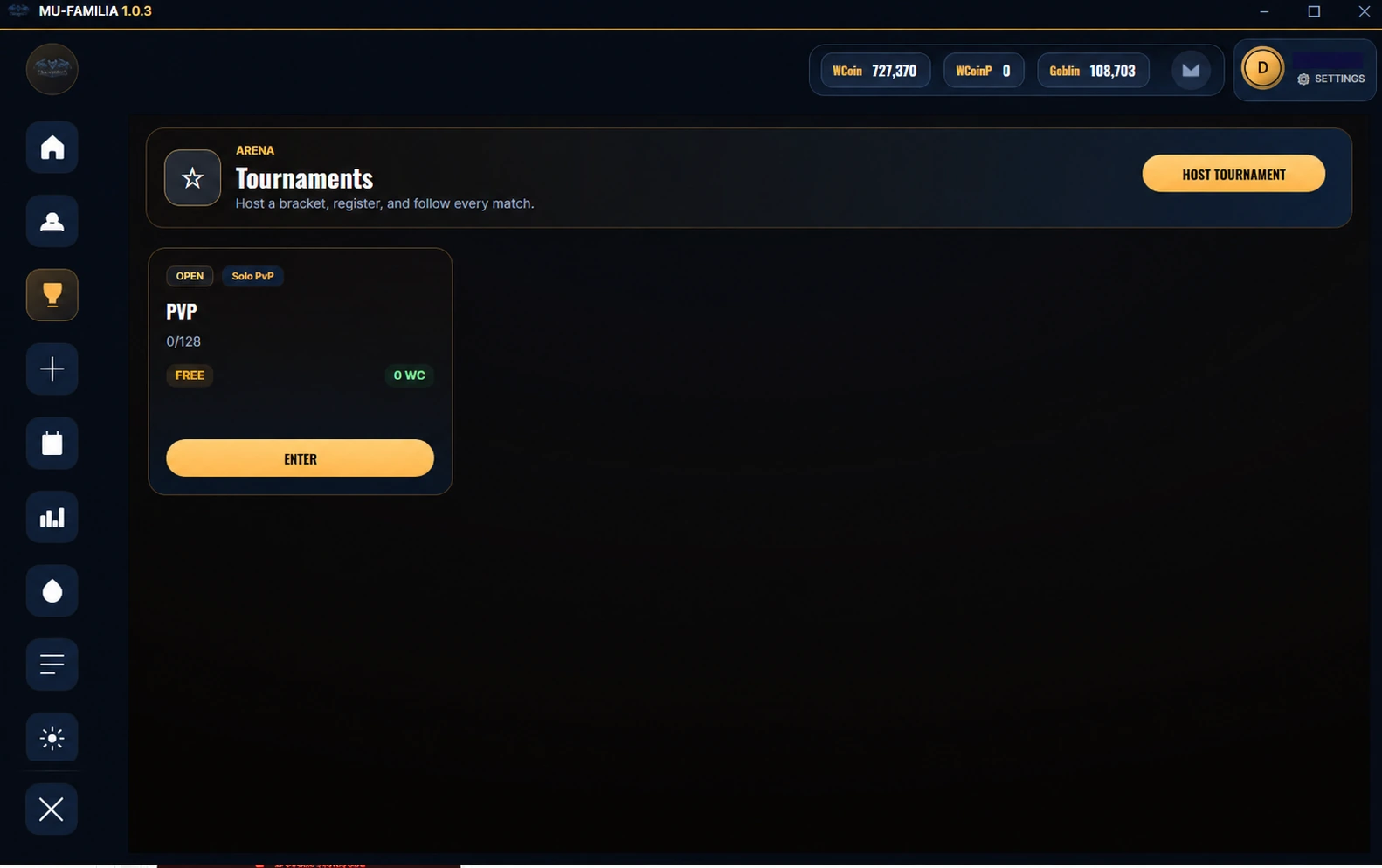
In Tournaments you can create your own tournaments. The administration will also organise tournaments with different prizes. Before joining, check the organiser, rules, format, places, dates and rewards. The screenshot does not confirm an active tournament or prize.
Events, bosses and invasions
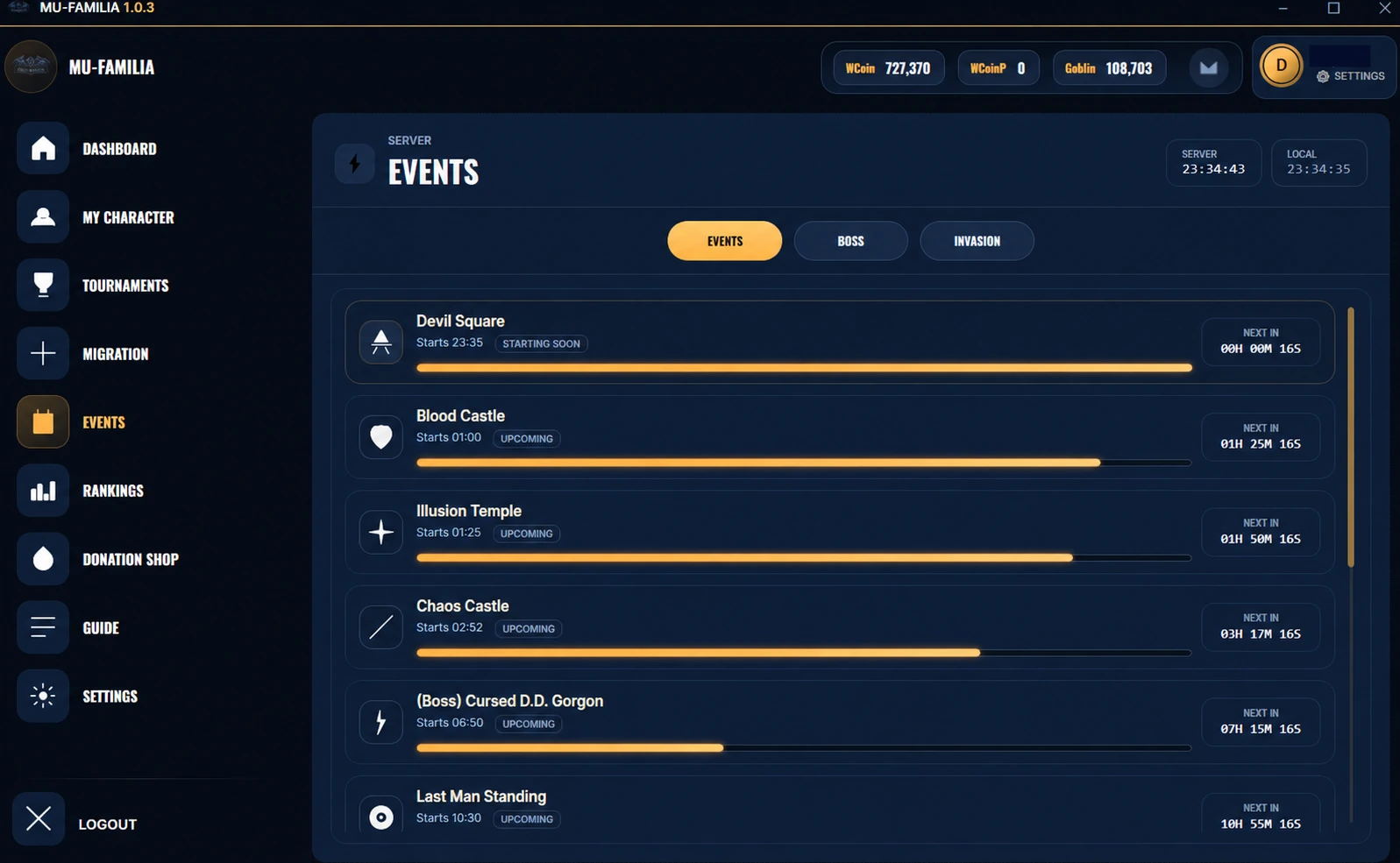
Events shows scheduled start times and the remaining time before events. Switch between Events, Boss and Invasion to find each activity. Distinguish the server time from the local time displayed in the panel. Times in this image are examples, not the final schedule.
Character rankings
Rankings lets you check character standings and compare published levels and resets. Available profiles must respect Hide Status: maps, allocated stats, equipment and connection must not become public.
Donation Shop and Donation Quests
Donation Shop brings together donations and Donation Quest rewards. Access it through the website or launcher. Check the account, package, price and confirmed progress before using the service. Reaching a milestone does not mean its reward has already been claimed.
Guides inside the launcher
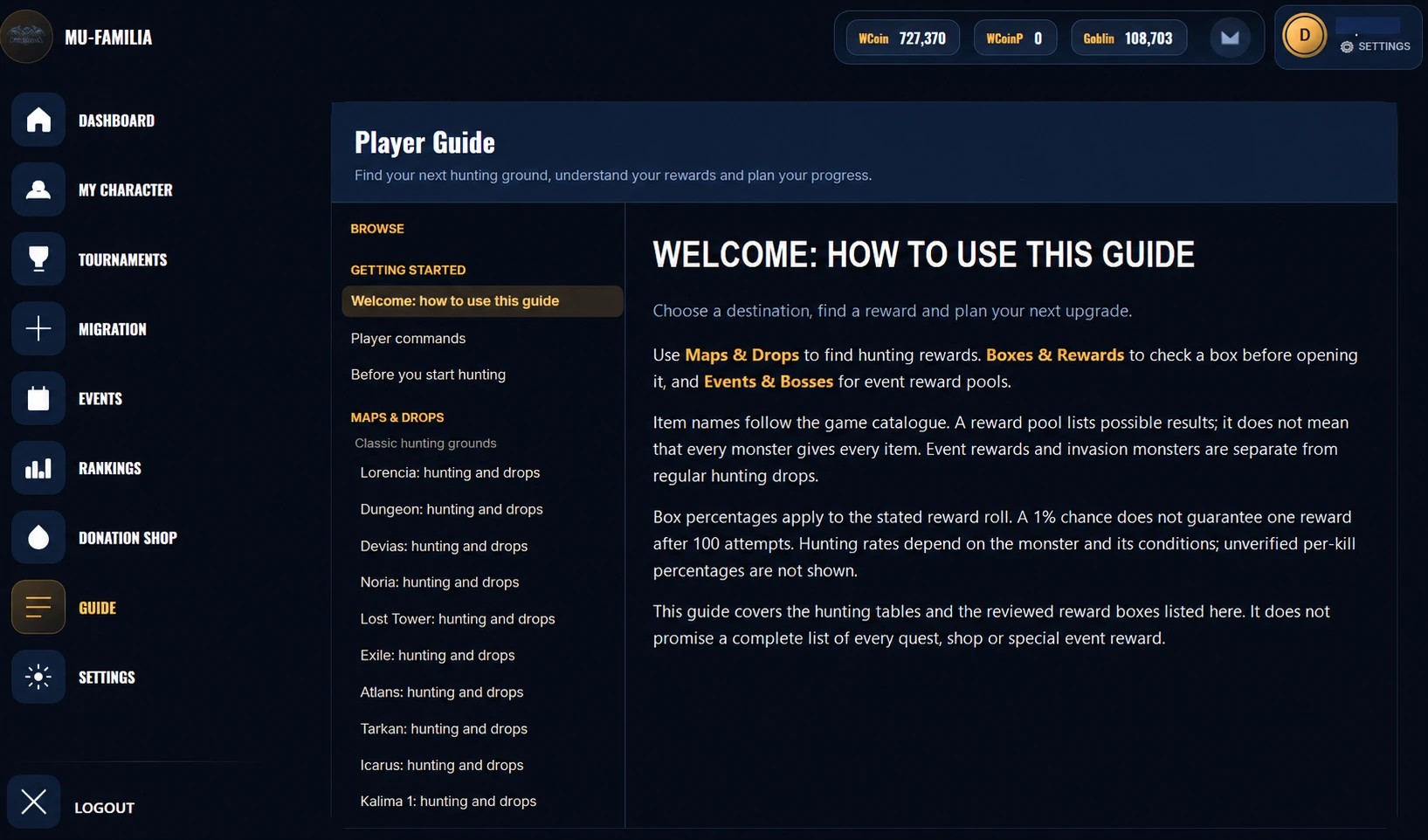
Guide covers getting started, commands, maps and drops, boxes and rewards, events and bosses. Check the source and conditions: a pool of possible rewards does not mean every item drops on every attempt. The web library provides further explanations.
Launcher and game language
Launcher language can be selected on the login screen and in Settings → Language. Choose a language and save; all panels should then be checked. This is separate from client language under Game Settings. LT/PL files are being prepared locally and still use English for many texts; they are not announced as complete translations.
Settings: saving changes and resolution
Fully close the game client before changing its settings. According to behaviour observed by the administration, changes may not save while the game is running. Distinguish launcher settings from client settings. If a resolution does not apply, try selecting the lowest available resolution and then the desired one. Press Save; if it does not respond, press it again and check the result after reopening the game. This is an observed workaround, not a software fix.